

Did your travel photos disappear after a wrong tap or a failed transfer? Fortunately, in many cases, deleted photos are not erased instantly. With the right steps, you may still be able to recover deleted photos successfully. And that is exactly what we are going to show you.
What To Do Immediately After Deleting Photos
Before we move on to recovery methods, let’s talk about how to have a higher chance of getting your photos back. Your first actions after deletion often matter the most.
Here’s what you should and should not do immediately after data loss:
- The most important thing is to stop any activity on the affected device as soon as possible. With every new photo, video, app install, or file transfer, you increase the risk of overwriting your files. When you delete a file, the system usually removes its reference, but not the data. The photo often still exists in storage, but only until new data replaces it.
- Next, power off the device or remove the SD card. If the photos were on a camera, turn it off and remove the SD card. If they were on a drone or GoPro, take the card out right away. We recommend keeping it disconnected until you are fully ready to begin recovery.
- Do not format the card or storage. If your camera shows “Card Error” or “No Images,” do not format it. Formatting can overwrite file system structures and reduce the chances of success. And if you run a full format, you won’t be able to restore permanently deleted photos at all.
- Do not save anything to the same storage. Never attempt to recover deleted photos and save them back to the same SD card, phone storage, or hard drive. Always recover files to a different device or external drive. Writing new data to the same location can permanently overwrite the deleted photos.
- Do not install recovery apps on the same storage where photos were deleted. Use a separate drive for scanning whenever possible.
Once you have secured the storage and stopped using the device, you can now try the recovery methods.
How to Restore Permanently Deleted Photos
Now let’s move on to our guide on recovering deleted photos from SD card and other storage devices.
We will start with the method that delivers the most reliable results in real-world recovery scenarios, show how to recover deleted photos from Windows, then cover phone recovery options and backup-based solutions.
Method 1: Recover Permanently Deleted Photos Using Data Recovery Software
In our experience, SD card and hard disk recovery software is generally the best option when travel photos disappear from an SD card. As we already mentioned, when images are deleted, they are not erased instantly. The storage system simply marks that space as available, which means the photo data often remains recoverable until it gets overwritten.
For this guide, we will use one of the most frequently recommended tools, Disk Drill. You can often see it mentioned in recommendation lists, like this Reddit thread. It is a good choice for memory card recovery because it supports common SD card file systems such as FAT32 and exFAT, detects standard image formats like JPG and PNG, and works well with camera RAW files. It is compatible with SD cards used in DSLR cameras, mirrorless cameras, action cameras, and drones.
Here is how to use Disk Drill to recover deleted photos from SD card:
- Remove the SD card from your camera or drone and connect it to your computer using a card reader. Avoid reconnecting it to the camera, as cameras may write background data that reduces recovery chances.
- Download and install Disk Drill on your Windows or Mac computer.
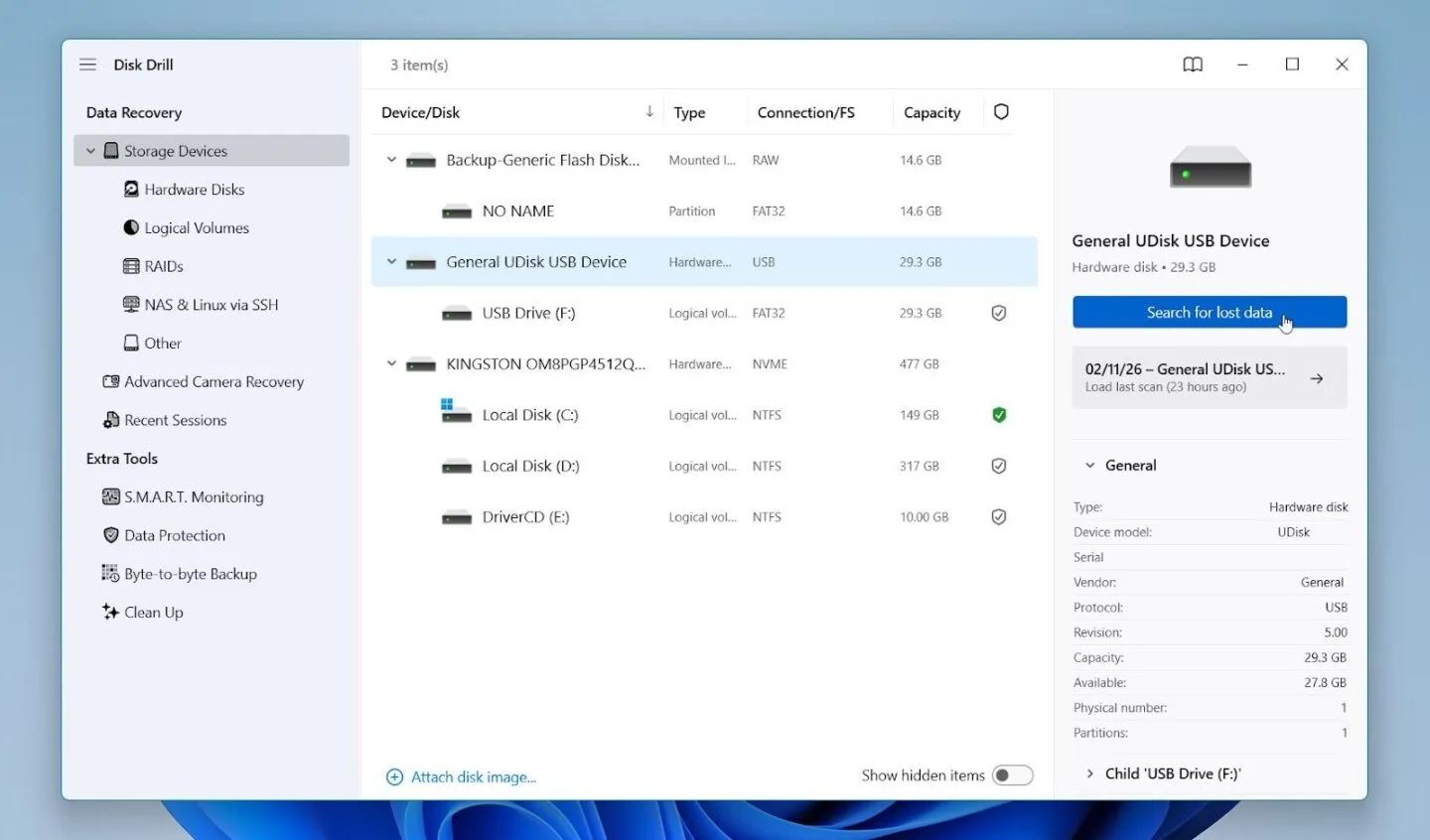
- Launch the program and locate your SD card in the list of available storage devices.
- Select the SD card and click Search for lost data.

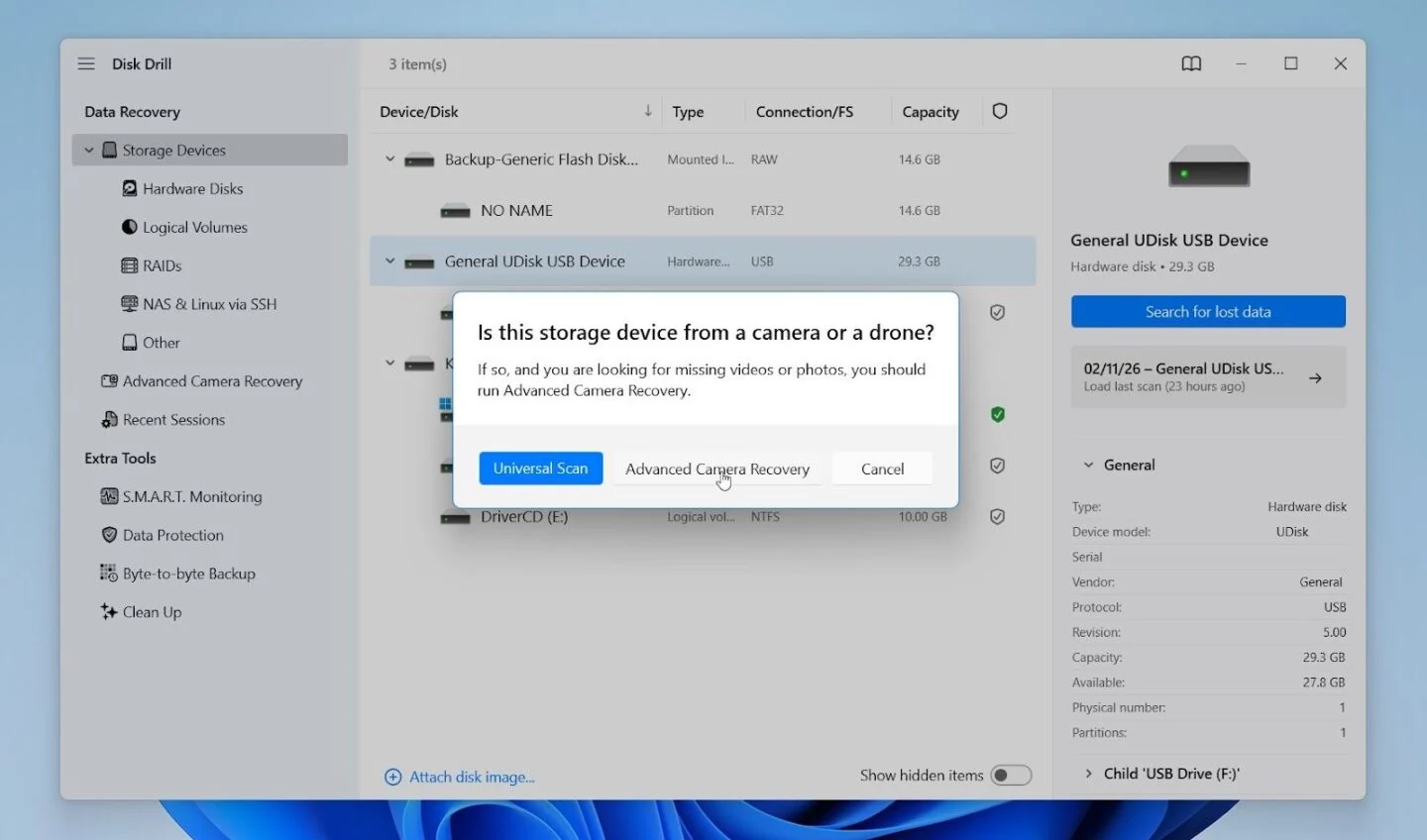
- Choose the recovery mode next. If you need to recover deleted photos, start with the Universal Scan first. Advanced Camera Recovery is better if you’re dealing with videos from cameras and drones.

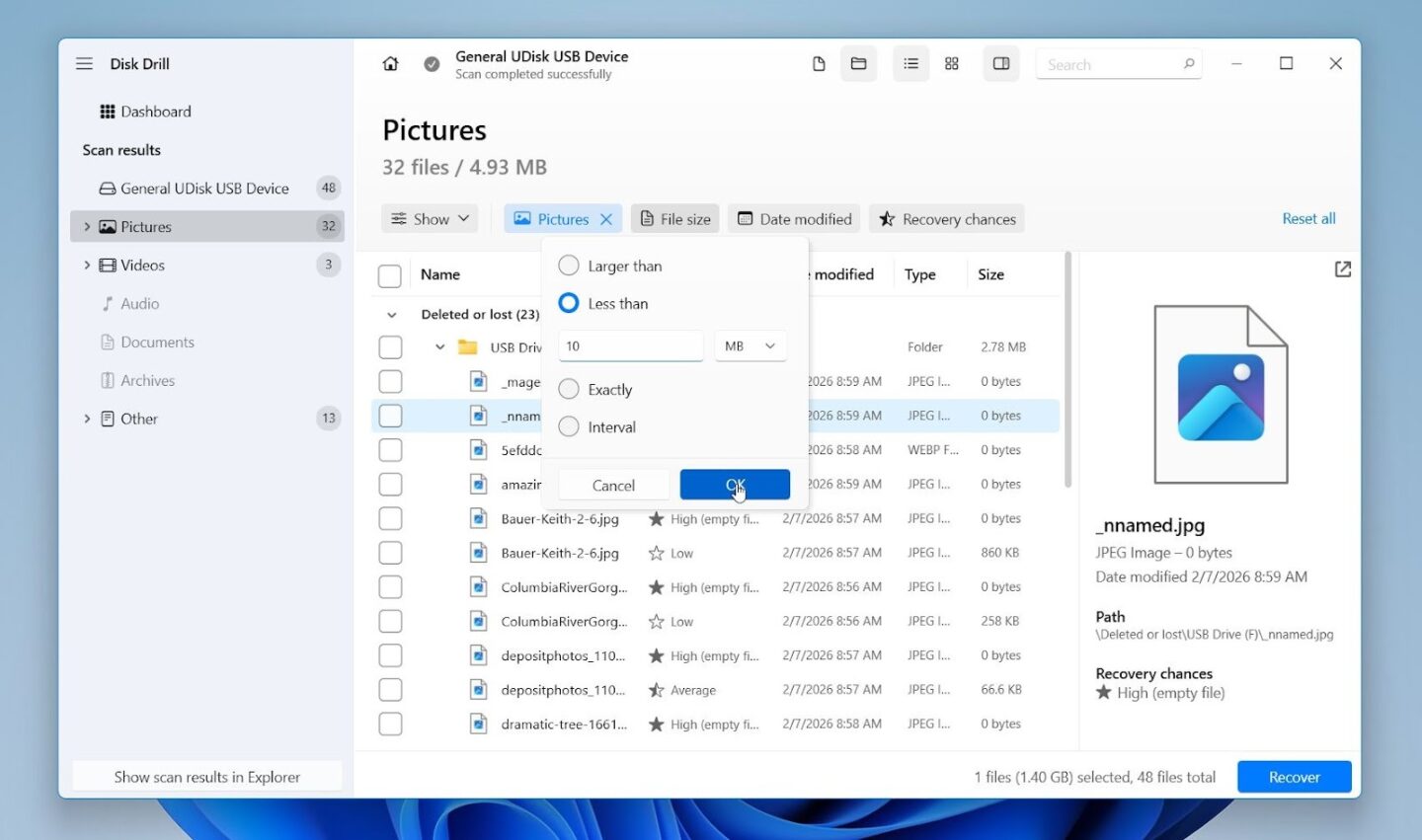
- Wait for the scan to complete. You can review found items during the scan as they appear. Use filters to narrow results by file type, size, date modified or recovery chances.
- Preview the photos to confirm they are intact. Select the photos you want to restore and click Recover.
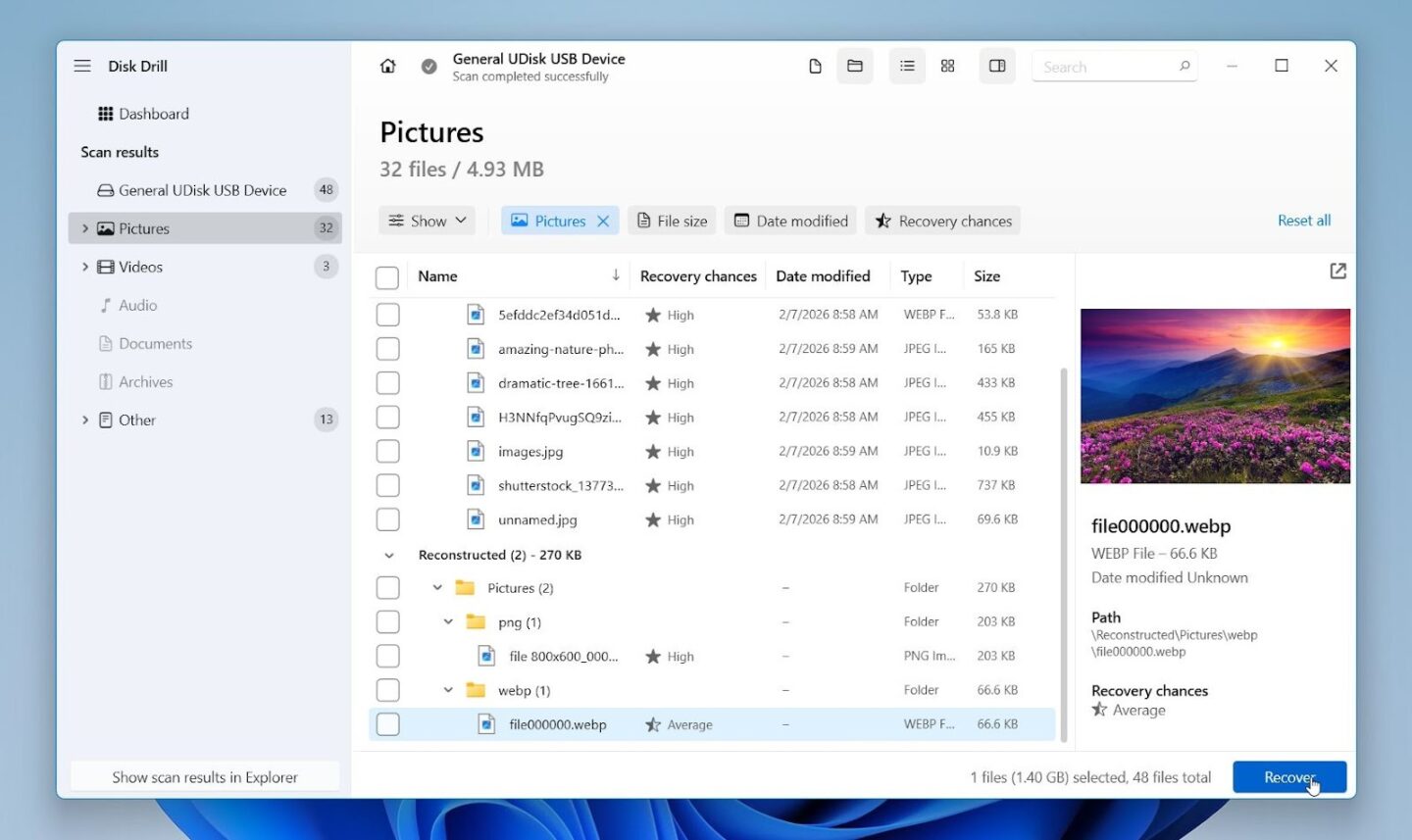
- Save the recovered files to a different drive or location, never back to the same SD card.
On Windows, Disk Drill allows recovery of up to 100 MB of data for free, which is enough to test whether your photos are recoverable before upgrading. It also includes useful features such as byte to byte backup, which lets you create a full image of the SD card and scan that copy instead of the original. This reduces stress on the card and is especially helpful if the memory card shows signs of corruption.
Method 2: Recover Deleted Photos from Phone
Recovery directly on a phone is often more complicated than recovery from an SD card. Modern smartphones use encryption and restricted file access, which limits what recovery software can see. Full photo recovery from internal storage requires a rooted Android device, and the phone needs to be rooted before the data loss occurs.
If your phone stores photos on an SD card, the process is much simpler. We usually advise removing the SD card from the phone, connecting it to your computer using a card reader. From there, follow Method 1 instructions for deleted photo recovery. This avoids phone restrictions and often delivers better recovery results.
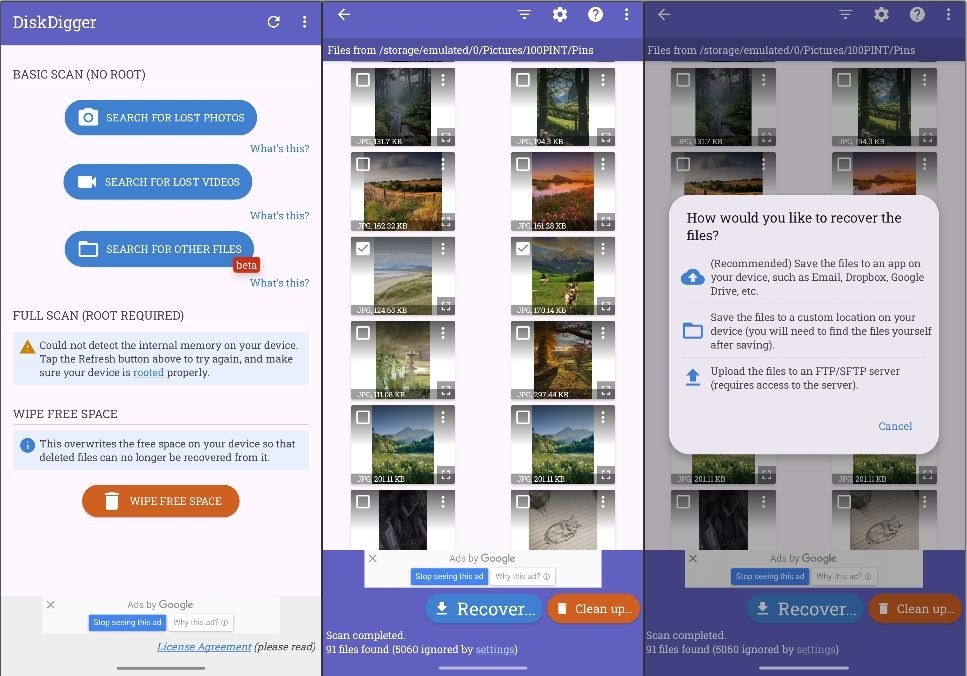
If photos were stored in internal phone memory, you have two main options: scan the phone directly with desktop software or use a mobile recovery app such as DiskDigger. Keep in mind that while some Android apps will work without root, the results may be limited.
Here is how to restore deleted photos with Disk Diger:
- Install DiskDigger from the Google Play Store.
- Tap Search for lost photos under Basic Scan (No Root) if your device is not rooted. If your phone is rooted, you can use the Full Scan (Root Required) option for deeper recovery.
- After you select the scan type, the scan will start automatically. Wait until the scanning process completes and thumbnails of recoverable photos appear.
- Select the photos you want to restore and choose a recovery destination, preferably cloud storage or email rather than saving back to the same internal memory.
If you are using an iPhone, the situation is different. iOS does not allow deep scanning of internal storage, so recovery usually relies on the Recently Deleted folder or iCloud backups rather than third party scanning tools.
Method 3: Cloud Backups
If cloud synchronization was enabled before the photos were deleted, restoring them from backup is often the safest and simplest option. This method works the same way whether the images were lost from a phone or a computer. The key factor is that the device was actively syncing with a cloud service before the deletion happened.
For example, if your device was connected to Google Drive follow these steps using a computer:
- Open a web browser and sign in to your Google account. Always use the web version first, since it provides full access to Trash and account settings.
- Search for the deleted photos by name, date, or location if you remember when they were taken. You can also browse by date using the timeline view in Google Photos.
- Open the Trash section. Google typically keeps deleted photos for a limited period, usually up to 30 or 60 days depending on the service and storage plan.

- Select the photos you want to recover.
- Right-click the file and select Restore. The photos will return to your main library.
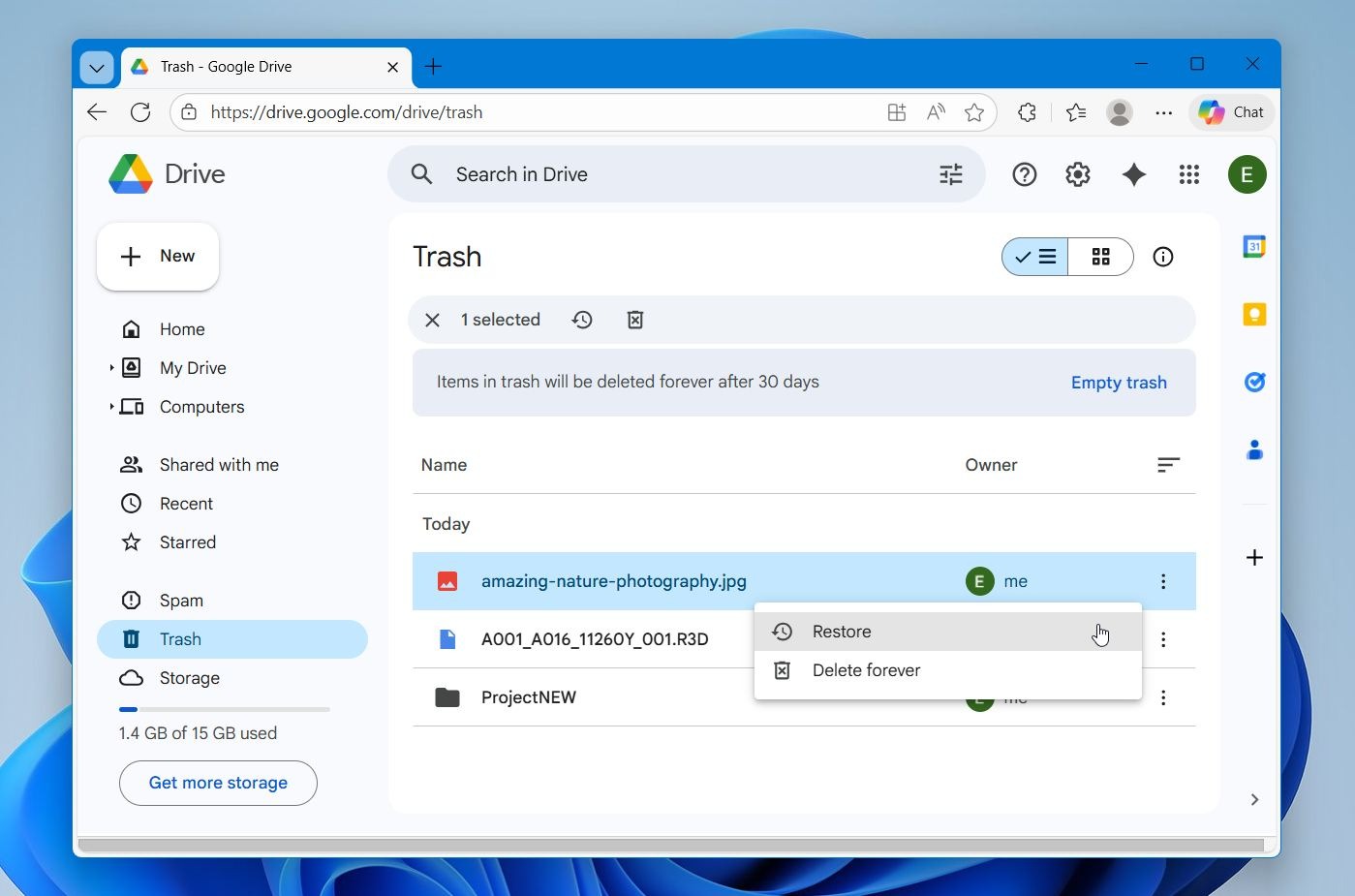
- Wait for synchronization to complete. If your phone or computer has sync enabled, the restored photos will automatically reappear in the gallery or original synced folder.
If your computer was synchronized with Google Drive Desktop, also check whether the photos exist in a previously synced folder version. In some cases, local sync software may have retained a copy even if the file was removed from the main directory.
Cloud recovery does not involve scanning storage or accessing internal memory. It restores files directly from a stored backup copy. However, this method only works if synchronization was active before deletion and the backup was fully completed. If sync was disabled or the photos were never uploaded, you will need to use data recovery software instead.
Method 4: Data Recovery Services
The last method we want to mention is professional data recovery services. While these labs can recover deleted photos, we recommend turning to them only in extreme situations such as water damage, broken memory cards, or devices that show 0 MB capacity and are not detected at all.
This option is usually expensive, and in many cases, deleted photos can still be recovered with DIY methods like the ones shown above.
However, if the storage is physically damaged or you prefer not to attempt recovery yourself, a reputable recovery lab may be the safest choice. Always confirm pricing and success policies before proceeding.
Wrapping Up
We hope this article helped you understand what to do after photo loss and which recovery method fits your situation. Deleted travel photos can often be restored, but fast action always makes a difference. For the future, follow a simple backup rule: keep at least three copies of your photos, store them on two different types of storage, and keep one copy in the cloud or offsite. This 3-2-1 approach protects your travel photos and reduces the risk of permanent loss.